- HP MA02XL laptop battery is made from the highest quality cells and parts. TheHP MA02XL is designed to meet or exceed original equipment specifications. Shopping with us is safe and secure! 100% Guarantee Quality and Fully Test!
MA02XL laptop battery pack for HP TPN-Q127 HSTNN-IB5B HSTNN-DB5B HSTNN-LB5B 722231-001.
HP MA02XL 25Wh 7.4V laptop battery is made from the highest quality cells and parts. The HP MA02XL is designed to meet or exceed original equipment specifications. Shopping with us is safe and secure! 100% Guarantee Quality and Fully Test!HP MA02XL laptop battery High Quality Battery 25Wh 7.4V
Product details:
Brand:HP laptop battery
Type: Li-ion-battery
Voltage: 25Wh
Capacity: 7.4V
Usually ships the same business day!
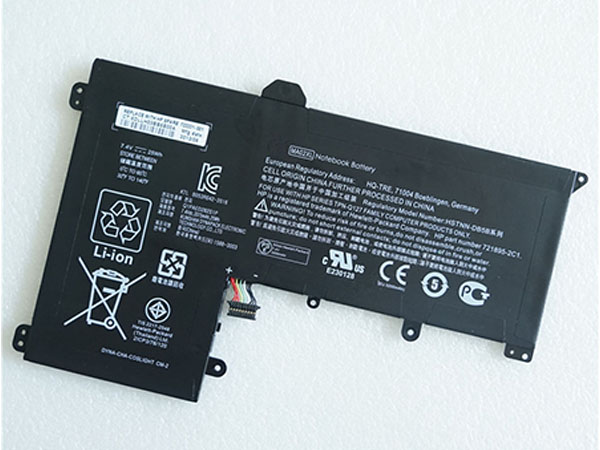
New HP MA02XL notebook battery High Quality Battery 25Wh, 7.4V
Replacement Battery>> HP MA02XL 25Wh 7.4V
Replace the following part numbers:
- HP MA02XL
- HP 722231-001
- HP 721895-421
- HP 721895-2C1
- HP TPN-Q127
- HP HSTNN-IB5B
- HP HSTNN-DB5B
- HP HSTNN-LB5B
- Fits the Following Models:
For HP SlateBook 10 X2 Serieshttps://www.uk-online.co.uk/MA02XL-battery-replacement-180002.html
RU: HP MA02XL
JP:
 HP MA02XL スマホのバッテリー-Japan First Store
DE:
 AKKU Für HP MA02XL, Ersatz für HP TPN-Q127 HSTNN-IB5B HSTNN-DB5B HSTNN-LB5B 722231-001.-Germany
NL:
 HP MA02XL Accu
IT:
 HP MA02XL Batteria-Italy
ES:
 HP MA02XL Batería-Spain
Laptop battery usage time
The battery of a laptop can generally be used for 3-5 hours. Laptop battery maintenance and maintenance: The battery is a consumable part and will be reimbursed after hundreds of uses. Therefore, we must pay attention to maintenance and maintenance when using the notebook battery. Activation must be done when you use a new battery. The so-called activation is to fully charge and discharge the battery. Many people say that activation should be carried out 3 to 5 times. In fact, according to many experiments, it only takes 2 or 3 times, because many batteries can reach 98.6% of the rated capacity after the first full charge. The second time is generally It is possible to fully reach the rated capacity. Others said that the activation of the charge should be charged for 12 hours, in fact, it is not quite correct, because when the control circuit thinks that the battery is fully charged, the battery is terminated by the circuit, and the battery is also connected to the power supply. It doesn’t make sense, but if you like to charge for 12 hours, you will know it. In addition, when your battery performance drops significantly, it can be fully charged and discharged several times, and the performance of the battery will be improved. The correct full charge and discharge method is to first turn off the power saving option in Bios, then select all of the Windows “power usage scheme” as “never”, remove all hooks in the “alarm” option, when the power is left Restart the computer at about 5%, press the Pause button on the screen to display the self-test information, then turn off the screen to discharge the battery under low current until it is automatically turned off and recharged. A full charge is completed. To extend battery life, you should pay attention to energy saving in daily use after battery activation. You can select “Maximum Battery Life” in the Bios power option, and you can turn off some devices you did.
UK-Online.co.uk was established to serve the needs of laptop users, and today we are one of the top e-retailers. Get a great deal on electronics when you shop on www.uk-online.co.uk. Choose an iPad, TV or laptop, headphones, PS4, Xbox One and more. Offers on mobile phones and cameras.
https://www.uk-online.co.uk/MA02XL-battery-replacement-180002.htmlHP MLP3810980 tablet battery for HP PRO WINDOWS TABLET 408 G1 I508O
ASUS C31N1324 laptop battery for Asus C31N1324
HP LK03XL laptop battery for HP TPN-W127 TPN-W128 TPN-1129 HSTNN-UB7I HSTNN-LB7U
ASUS B41N1304 tablet battery for Asus V451L V451LA S451LA B41BK4G
HP TT03XL laptop battery for HP HSN-I13C-5 HSTNN-LB8H 933322-855 932824-421 HSTNN-DB8K
Asus C31N1525 laptop battery for Asus T302 BATT LG-POLY T302CHI-2C
ASUS C21N1618 laptop battery for ASUS VivoBook X402B 2ICP7/49/91
ASUS C21N1434 tablet battery for ASUS C21N1434
ASUS C31N1529 tablet battery for ASUS C31P0C1 C31POC1
HP EO04XL laptop battery for HP EliteBook Folio G1 HSTNN-I73C HSTNN-IB71 827927-1B1
Other Hot Sales:
Asus C11P1502 laptop battery4750mAh – 3.8V
Lenovo L13D1P32 laptop battery4290MAH/16.3WH – 3.8V
Asus C12N1320 laptop battery7900mAh/31Wh – 3.8V
Lenovo L12T1P3 laptop battery3700mAh/3.7wh – 3.7V
Lenovo L14D2P31 laptop battery7000mAh/26.60wh – 3.8V
Apple A1484 laptop battery8827mAh – 3.73V
Bose 404600 laptop battery2300mah – 11.1V/12.4v
Bose 063404 laptop battery2230mAH/17Wh – 7.4V
Bose 300769-003 laptop battery400mA/2200mAH/32Wh – 16.8V/20V
Bose PSM36W-208 laptop battery100-240V 50-60Hz (for worldwi – 18V,1A,18w
HP OL02XL laptop battery4450 mAh – 7.4 V
Bose 061384 laptop battery2230mAH/17Wh – 7.4V
ASUS C11P1517 laptop battery4545mAh/18Wh – 3.85V
Bose 088796 laptop battery2230mAH/17Wh – 7.4V
Asus C11P1505 laptop battery3948mAh – 3.8V
Amazon 58-000151 laptop battery890mAh – 3.7V/4.2V
Huawei HB436486ECW laptop battery3900mAh/14.9wh – 3.82V
Medion A41-E15 laptop battery2600MAH/37WH – 14.52V
BLU C836404292L laptop battery2090MAH/11.096WH – 3.8V
VERTU VBL-02 laptop battery3080MAH/11.7WH – 3.8V
Haswell TU131-TS63-74 laptop battery6000mAh/45wh – 7.4V
Samsung 4302-001262 laptop battery2200mAh/24Wh – 11.1V
Gigabyte GNG-E20 laptop battery5300mAh/39.22Wh – 7.4V
Gigabyte NC-H40 laptop battery4300mAh/63.64Wh – 14.8V
Sony LIS1569ERPC laptop battery4500mAh/17.1wh – 3.8V
NEC PC-VP-BP67 laptop battery2900mAh/39WH – 14.4V
Bose 78592 laptop battery5500MAH – 14.8V
HP tablet battery pack for HP PRO WINDOWS TABLET 408 G1 I508O
- HP MLP3810980 tablet battery is made from the highest quality cells and parts. TheHP MLP3810980 is designed to meet or exceed original equipment specifications. Shopping with us is safe and secure! 100% Guarantee Quality and Fully Test!
Perfectly extend battery HP MLP3810980 tablet battery service life:
1. Maintain an appropriate temperature
2. Keep the electrons in the battery flowing at all times, in accordance with standard maintenance. E.g, you try to use the battery when you are out and charge more with the power at home.
3. Charge according to the standard method and do not charge for up to 12 hours
4. Maintain good living habits and turn on the intelligent power-saving mode of equipmentHP MLP3810980 tablet battery High Quality Battery 4800mAh/18.24Wh 3.8V
Product details:
Brand:HP tablet battery
Type: Li-ion-battery
Voltage: 4800mAh/18.24Wh
Capacity: 3.8V
Usually ships the same business day!
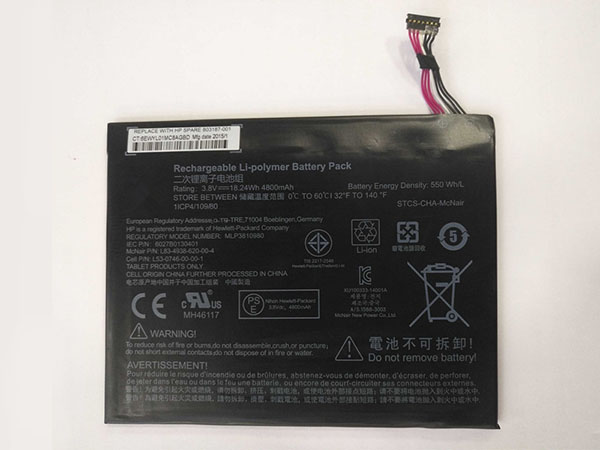
New HP MLP3810980 battery High Quality Battery 4800mAh/18.24Wh, 3.8V
Replacement Battery>> HP MLP3810980 4800mAh/18.24Wh 3.8V
Replace the following part numbers:
- HP MLP3810980
- Fits the Following Models:
For HP PRO WINDOWS TABLET 408 G1 I508Ohttps://www.uk-online.co.uk/MLP3810980-battery-replacement-180003.html
RU:HP MLP3810980JP:
HP MLP3810980 スマホのバッテリー-Japan First StoreDE:
AKKU Für HP MLP3810980, Ersatz für HP PRO WINDOWS TABLET 408 G1 I508O.-GermanyIT:
HP MLP3810980 Batteria-ItalyES:
HP MLP3810980 Batería-SpainLaptop battery usage time
The battery of a laptop can generally be used for 3-5 hours. Laptop battery maintenance and maintenance: The battery is a consumable part and will be reimbursed after hundreds of uses. Therefore, we must pay attention to maintenance and maintenance when using the notebook battery. Activation must be done when you use a new battery. The so-called activation is to fully charge and discharge the battery. Many people say that activation should be carried out 3 to 5 times. In fact, according to many experiments, it only takes 2 or 3 times, because many batteries can reach 98.6% of the rated capacity after the first full charge. The second time is generally It is possible to fully reach the rated capacity. Others said that the activation of the charge should be charged for 12 hours, in fact, it is not quite correct, because when the control circuit thinks that the battery is fully charged, the battery is terminated by the circuit, and the battery is also connected to the power supply. It doesn’t make sense, but if you like to charge for 12 hours, you will know it. In addition, when your battery performance drops significantly, it can be fully charged and discharged several times, and the performance of the battery will be improved. The correct full charge and discharge method is to first turn off the power saving option in Bios, then select all of the Windows “power usage scheme” as “never”, remove all hooks in the “alarm” option, when the power is left Restart the computer at about 5%, press the Pause button on the screen to display the self-test information, then turn off the screen to discharge the battery under low current until it is automatically turned off and recharged. A full charge is completed. To extend battery life, you should pay attention to energy saving in daily use after battery activation. You can select “Maximum Battery Life” in the Bios power option, and you can turn off some devices you did.
UK-Online.co.uk was established to serve the needs of laptop users, and today we are one of the top e-retailers. Get a great deal on electronics when you shop on www.uk-online.co.uk. Choose an iPad, TV or laptop, headphones, PS4, Xbox One and more. Offers on mobile phones and cameras.
https://www.uk-online.co.uk/MLP3810980-battery-replacement-180003.htmlASUS C31N1324 laptop battery for Asus C31N1324
HP LK03XL laptop battery for HP TPN-W127 TPN-W128 TPN-1129 HSTNN-UB7I HSTNN-LB7U
ASUS B41N1304 tablet battery for Asus V451L V451LA S451LA B41BK4G
HP TT03XL laptop battery for HP HSN-I13C-5 HSTNN-LB8H 933322-855 932824-421 HSTNN-DB8K
Asus C31N1525 laptop battery for Asus T302 BATT LG-POLY T302CHI-2C
ASUS C21N1618 laptop battery for ASUS VivoBook X402B 2ICP7/49/91
ASUS C21N1434 tablet battery for ASUS C21N1434
ASUS C31N1529 tablet battery for ASUS C31P0C1 C31POC1
HP EO04XL laptop battery for HP EliteBook Folio G1 HSTNN-I73C HSTNN-IB71 827927-1B1
ASUS C21N1421 tablet battery for ASUS Transformer Book T300CHI
Other Hot Sales:
Asus C11P1502 tablet battery4750mAh – 3.8V
Lenovo L13D1P32 tablet battery4290MAH/16.3WH – 3.8V
Asus C12N1320 tablet battery7900mAh/31Wh – 3.8V
Lenovo L12T1P3 tablet battery3700mAh/3.7wh – 3.7V
Lenovo L14D2P31 tablet battery7000mAh/26.60wh – 3.8V
Apple A1484 tablet battery8827mAh – 3.73V
Bose 404600 tablet battery2300mah – 11.1V/12.4v
Bose 063404 tablet battery2230mAH/17Wh – 7.4V
Bose 300769-003 tablet battery400mA/2200mAH/32Wh – 16.8V/20V
Bose PSM36W-208 tablet battery100-240V 50-60Hz (for worldwi – 18V,1A,18w
HP OL02XL tablet battery4450 mAh – 7.4 V
Bose 061384 tablet battery2230mAH/17Wh – 7.4V
ASUS C11P1517 tablet battery4545mAh/18Wh – 3.85V
Bose 088796 tablet battery2230mAH/17Wh – 7.4V
Asus C11P1505 tablet battery3948mAh – 3.8V
Amazon 58-000151 tablet battery890mAh – 3.7V/4.2V
Huawei HB436486ECW tablet battery3900mAh/14.9wh – 3.82V
Medion A41-E15 tablet battery2600MAH/37WH – 14.52V
BLU C836404292L tablet battery2090MAH/11.096WH – 3.8V
VERTU VBL-02 tablet battery3080MAH/11.7WH – 3.8V
Haswell TU131-TS63-74 tablet battery6000mAh/45wh – 7.4V
Samsung 4302-001262 tablet battery2200mAh/24Wh – 11.1V
Gigabyte GNG-E20 tablet battery5300mAh/39.22Wh – 7.4V
Gigabyte NC-H40 tablet battery4300mAh/63.64Wh – 14.8V
Sony LIS1569ERPC tablet battery4500mAh/17.1wh – 3.8V
NEC PC-VP-BP67 tablet battery2900mAh/39WH – 14.4V
Bose 78592 tablet battery5500MAH – 14.8V
ASUS C31N1324 laptop battery for Asus C31N1324
- ASUS C31N1324 laptop battery is made from the highest quality cells and parts. TheASUS C31N1324 is designed to meet or exceed original equipment specifications. Shopping with us is safe and secure! 100% Guarantee Quality and Fully Test!
C31N1324 laptop battery pack for Asus C31N1324.
ASUS C31N1324 3900mAh/44Wh 11.1V laptop battery is made from the highest quality cells and parts. The ASUS C31N1324 is designed to meet or exceed original equipment specifications. Shopping with us is safe and secure! 100% Guarantee Quality and Fully Test!ASUS C31N1324 laptop battery High Quality Battery 3900mAh/44Wh 11.1V
Product details:
Brand:ASUS laptop battery
Type: Li-ion-battery
Voltage: 3900mAh/44Wh
Capacity: 11.1V
Usually ships the same business day!
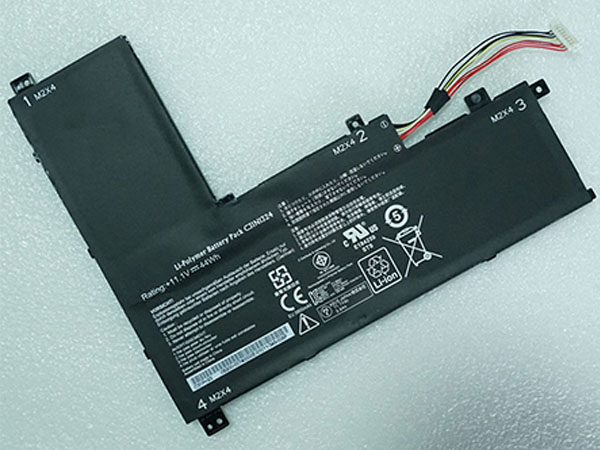
New ASUS C31N1324 notebook battery High Quality Battery 3900mAh/44Wh, 11.1V
Replacement Battery>> ASUS C31N1324 3900mAh/44Wh 11.1V
Replace the following part numbers:
- ASUS C31N1324
- Fits the Following Models:
for Asus C31N1324 Series Laptophttps://www.uk-online.co.uk/C31N1324-battery-replacement-180004.html
RU:ASUS C31N1324JP:
ASUS C31N1324 スマホのバッテリー-Japan First StoreDE:
AKKU Für ASUS C31N1324, Ersatz für Asus C31N1324.-GermanyIT:
ASUS C31N1324 Batteria-ItalyES:
ASUS C31N1324 Batería-SpainLaptop battery usage time
The battery of a laptop can generally be used for 3-5 hours. Laptop battery maintenance and maintenance: The battery is a consumable part and will be reimbursed after hundreds of uses. Therefore, we must pay attention to maintenance and maintenance when using the notebook battery. Activation must be done when you use a new battery. The so-called activation is to fully charge and discharge the battery. Many people say that activation should be carried out 3 to 5 times. In fact, according to many experiments, it only takes 2 or 3 times, because many batteries can reach 98.6% of the rated capacity after the first full charge. The second time is generally It is possible to fully reach the rated capacity. Others said that the activation of the charge should be charged for 12 hours, in fact, it is not quite correct, because when the control circuit thinks that the battery is fully charged, the battery is terminated by the circuit, and the battery is also connected to the power supply. It doesn’t make sense, but if you like to charge for 12 hours, you will know it. In addition, when your battery performance drops significantly, it can be fully charged and discharged several times, and the performance of the battery will be improved. The correct full charge and discharge method is to first turn off the power saving option in Bios, then select all of the Windows “power usage scheme” as “never”, remove all hooks in the “alarm” option, when the power is left Restart the computer at about 5%, press the Pause button on the screen to display the self-test information, then turn off the screen to discharge the battery under low current until it is automatically turned off and recharged. A full charge is completed. To extend battery life, you should pay attention to energy saving in daily use after battery activation. You can select “Maximum Battery Life” in the Bios power option, and you can turn off some devices you did.
UK-Online.co.uk was established to serve the needs of laptop users, and today we are one of the top e-retailers. Get a great deal on electronics when you shop on www.uk-online.co.uk. Choose an iPad, TV or laptop, headphones, PS4, Xbox One and more. Offers on mobile phones and cameras.
https://www.uk-online.co.uk/C31N1324-battery-replacement-180004.htmlHP LK03XL laptop battery for HP TPN-W127 TPN-W128 TPN-1129 HSTNN-UB7I HSTNN-LB7U
ASUS B41N1304 tablet battery for Asus V451L V451LA S451LA B41BK4G
HP TT03XL laptop battery for HP HSN-I13C-5 HSTNN-LB8H 933322-855 932824-421 HSTNN-DB8K
Asus C31N1525 laptop battery for Asus T302 BATT LG-POLY T302CHI-2C
ASUS C21N1618 laptop battery for ASUS VivoBook X402B 2ICP7/49/91
ASUS C21N1434 tablet battery for ASUS C21N1434
ASUS C31N1529 tablet battery for ASUS C31P0C1 C31POC1
HP EO04XL laptop battery for HP EliteBook Folio G1 HSTNN-I73C HSTNN-IB71 827927-1B1
ASUS C21N1421 tablet battery for ASUS Transformer Book T300CHI
MSI BP-KI-41/4240 laptop battery for MSI BP-KI-41/4240
Other Hot Sales:
Asus C11P1502 laptop battery4750mAh – 3.8V
Lenovo L13D1P32 laptop battery4290MAH/16.3WH – 3.8V
Asus C12N1320 laptop battery7900mAh/31Wh – 3.8V
Lenovo L12T1P3 laptop battery3700mAh/3.7wh – 3.7V
Lenovo L14D2P31 laptop battery7000mAh/26.60wh – 3.8V
Apple A1484 laptop battery8827mAh – 3.73V
Bose 404600 laptop battery2300mah – 11.1V/12.4v
Bose 063404 laptop battery2230mAH/17Wh – 7.4V
Bose 300769-003 laptop battery400mA/2200mAH/32Wh – 16.8V/20V
Bose PSM36W-208 laptop battery100-240V 50-60Hz (for worldwi – 18V,1A,18w
HP OL02XL laptop battery4450 mAh – 7.4 V
Bose 061384 laptop battery2230mAH/17Wh – 7.4V
ASUS C11P1517 laptop battery4545mAh/18Wh – 3.85V
Bose 088796 laptop battery2230mAH/17Wh – 7.4V
Asus C11P1505 laptop battery3948mAh – 3.8V
Amazon 58-000151 laptop battery890mAh – 3.7V/4.2V
Huawei HB436486ECW laptop battery3900mAh/14.9wh – 3.82V
Medion A41-E15 laptop battery2600MAH/37WH – 14.52V
BLU C836404292L laptop battery2090MAH/11.096WH – 3.8V
VERTU VBL-02 laptop battery3080MAH/11.7WH – 3.8V
Haswell TU131-TS63-74 laptop battery6000mAh/45wh – 7.4V
Samsung 4302-001262 laptop battery2200mAh/24Wh – 11.1V
Gigabyte GNG-E20 laptop battery5300mAh/39.22Wh – 7.4V
Gigabyte NC-H40 laptop battery4300mAh/63.64Wh – 14.8V
Sony LIS1569ERPC laptop battery4500mAh/17.1wh – 3.8V
NEC PC-VP-BP67 laptop battery2900mAh/39WH – 14.4V
Bose 78592 laptop battery5500MAH – 14.8V
HP LK03XL Battery For HP TPN-W127 TPN-W128 TPN-1129 HSTNN-UB7I HSTNN-LB7U 4835mAh/55.8Wh 11.55V
- HP LK03XL laptop battery is made from the highest quality cells and parts. TheHP LK03XL is designed to meet or exceed original equipment specifications. Shopping with us is safe and secure! 100% Guarantee Quality and Fully Test!
LK03XL laptop battery pack for HP TPN-W127 TPN-W128 TPN-1129 HSTNN-UB7I HSTNN-LB7U.
HP LK03XL 4835mAh/55.8Wh 11.55V laptop battery is made from the highest quality cells and parts. The HP LK03XL is designed to meet or exceed original equipment specifications. Shopping with us is safe and secure! 100% Guarantee Quality and Fully Test!HP LK03XL laptop battery High Quality Battery 4835mAh/55.8Wh 11.55V
Product details:
Brand:HP laptop battery
Type: Li-ion-battery
Voltage: 4835mAh/55.8Wh
Capacity: 11.55V
Usually ships the same business day!
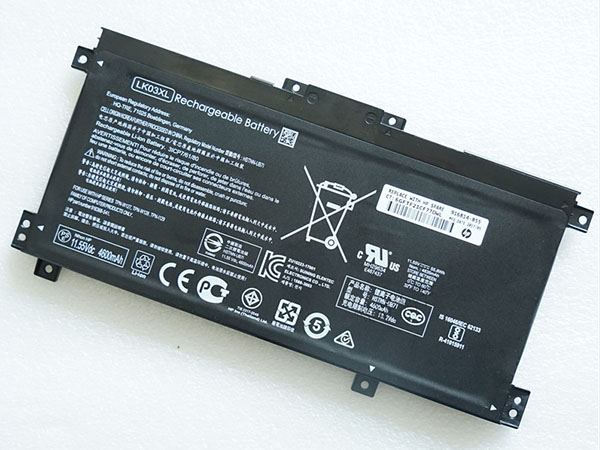
New HP LK03XL notebook battery High Quality Battery 4835mAh/55.8Wh, 11.55V
Replacement Battery>> HP LK03XL 4835mAh/55.8Wh 11.55V
Replace the following part numbers:
- HP LK03XL
- HP HSTNN-LB7U
- HP 916368-421
- HP 916814-855
- HP TPN-W127
- HP TPN-W128
- HP TPN-1129
- HP HSTNN-UB7I
- Fits the Following Models:
For HP LK03XL HSTNN-LB7U 916368-421 916814-855 TPN-W127 TPN-W128 TPN-1129 HSTNN-UB7Ihttps://www.uk-online.co.uk/LK03XL-battery-replacement-180005.html
RU:HP LK03XLJP:
HP LK03XL スマホのバッテリー-Japan First StoreDE:
AKKU Für HP LK03XL, Ersatz für HP TPN-W127 TPN-W128 TPN-1129 HSTNN-UB7I HSTNN-LB7U.-GermanyNL:
HP LK03XL AccuIT:
HP LK03XL Batteria-ItalyES:
HP LK03XL Batería-SpainLaptop battery usage time
The battery of a laptop can generally be used for 3-5 hours. Laptop battery maintenance and maintenance: The battery is a consumable part and will be reimbursed after hundreds of uses. Therefore, we must pay attention to maintenance and maintenance when using the notebook battery. Activation must be done when you use a new battery. The so-called activation is to fully charge and discharge the battery. Many people say that activation should be carried out 3 to 5 times. In fact, according to many experiments, it only takes 2 or 3 times, because many batteries can reach 98.6% of the rated capacity after the first full charge. The second time is generally It is possible to fully reach the rated capacity. Others said that the activation of the charge should be charged for 12 hours, in fact, it is not quite correct, because when the control circuit thinks that the battery is fully charged, the battery is terminated by the circuit, and the battery is also connected to the power supply. It doesn’t make sense, but if you like to charge for 12 hours, you will know it. In addition, when your battery performance drops significantly, it can be fully charged and discharged several times, and the performance of the battery will be improved. The correct full charge and discharge method is to first turn off the power saving option in Bios, then select all of the Windows “power usage scheme” as “never”, remove all hooks in the “alarm” option, when the power is left Restart the computer at about 5%, press the Pause button on the screen to display the self-test information, then turn off the screen to discharge the battery under low current until it is automatically turned off and recharged. A full charge is completed. To extend battery life, you should pay attention to energy saving in daily use after battery activation. You can select “Maximum Battery Life” in the Bios power option, and you can turn off some devices you did.
UK-Online.co.uk was established to serve the needs of laptop users, and today we are one of the top e-retailers. Get a great deal on electronics when you shop on www.uk-online.co.uk. Choose an iPad, TV or laptop, headphones, PS4, Xbox One and more. Offers on mobile phones and cameras.
https://www.uk-online.co.uk/LK03XL-battery-replacement-180005.htmlASUS B41N1304 tablet battery for Asus V451L V451LA S451LA B41BK4G
HP TT03XL laptop battery for HP HSN-I13C-5 HSTNN-LB8H 933322-855 932824-421 HSTNN-DB8K
Asus C31N1525 laptop battery for Asus T302 BATT LG-POLY T302CHI-2C
ASUS C21N1618 laptop battery for ASUS VivoBook X402B 2ICP7/49/91
ASUS C21N1434 tablet battery for ASUS C21N1434
ASUS C31N1529 tablet battery for ASUS C31P0C1 C31POC1
HP EO04XL laptop battery for HP EliteBook Folio G1 HSTNN-I73C HSTNN-IB71 827927-1B1
ASUS C21N1421 tablet battery for ASUS Transformer Book T300CHI
MSI BP-KI-41/4240 laptop battery for MSI BP-KI-41/4240
Other Hot Sales:
Asus C11P1502 laptop battery4750mAh – 3.8V
Lenovo L13D1P32 laptop battery4290MAH/16.3WH – 3.8V
Asus C12N1320 laptop battery7900mAh/31Wh – 3.8V
Lenovo L12T1P3 laptop battery3700mAh/3.7wh – 3.7V
Lenovo L14D2P31 laptop battery7000mAh/26.60wh – 3.8V
Apple A1484 laptop battery8827mAh – 3.73V
Bose 404600 laptop battery2300mah – 11.1V/12.4v
Bose 063404 laptop battery2230mAH/17Wh – 7.4V
Bose 300769-003 laptop battery400mA/2200mAH/32Wh – 16.8V/20V
Bose PSM36W-208 laptop battery100-240V 50-60Hz (for worldwi – 18V,1A,18w
HP OL02XL laptop battery4450 mAh – 7.4 V
Bose 061384 laptop battery2230mAH/17Wh – 7.4V
ASUS C11P1517 laptop battery4545mAh/18Wh – 3.85V
Bose 088796 laptop battery2230mAH/17Wh – 7.4V
Asus C11P1505 laptop battery3948mAh – 3.8V
Amazon 58-000151 laptop battery890mAh – 3.7V/4.2V
Huawei HB436486ECW laptop battery3900mAh/14.9wh – 3.82V
Medion A41-E15 laptop battery2600MAH/37WH – 14.52V
BLU C836404292L laptop battery2090MAH/11.096WH – 3.8V
VERTU VBL-02 laptop battery3080MAH/11.7WH – 3.8V
Haswell TU131-TS63-74 laptop battery6000mAh/45wh – 7.4V
Samsung 4302-001262 laptop battery2200mAh/24Wh – 11.1V
Gigabyte GNG-E20 laptop battery5300mAh/39.22Wh – 7.4V
Gigabyte NC-H40 laptop battery4300mAh/63.64Wh – 14.8V
Sony LIS1569ERPC laptop battery4500mAh/17.1wh – 3.8V
NEC PC-VP-BP67 laptop battery2900mAh/39WH – 14.4V
Bose 78592 laptop battery5500MAH – 14.8V
Microsoft Replacement AC Adapter for 1429 Microsoft Xbox 360 Kinect Camera Sensor Bar
- This Power Charger will work like a charm with your Microsoft 1429 laptop. A free power cord is also attached for your convenience. We do proudly declare that this Microsoft 1429 AC adapter is high quality. Besides, our Microsoft 1429 AC adapter is brand new and backed by a 30-day money guarantee. Please purchase with full confidence. So if your original adapter is lost or broken, this would be your choice. 1 Year Warranty & Fast Shipping.
New Replacement MICROSOFT 1429 Adapter
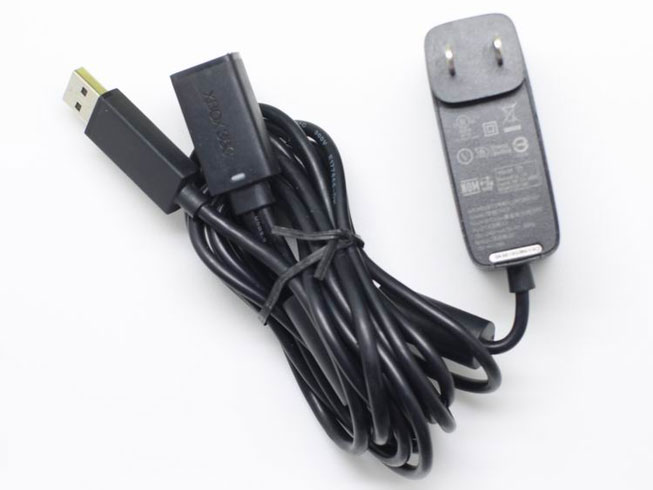
Product Details
Device Type: Power adapter – external
Power Capacity: 12V 1.08A
Manufacturer Warranty: 1 year warranty
Fit Models: Notebook Adapter for Microsoft Xbox 360 Kinect Camera Sensor Bar
Adapter Part Numbers:
1429 1448 1430 1432
JP:Microsoft 1429DE:Microsoft 1429 NOTEBOOK-Netzteil. Das richtige MICROSOFT Laptop adapter finden.
NL:Microsoft 1429 power adapter
Can the notebook power adapter be universal?
Notebook power adapters are not universal. The reasons for not being universal are as follows: First, most notebook power adapter brands have different interfaces, which means that other brands of power adapters cannot be plugged into a laptop at all. The difference in interface is relatively safe, because at least you will not plug in a power adapter that does not match the current or voltage to power the laptop, causing damage to the computer hardware. Secondly, the voltage of laptop power adapters with different voltages is different. For example, IBM is generally 16V, Dell is 20V, Hp is 18.5V, Sony is 19.5V and so on. It can be seen that even if the power adapter interface is the same, it cannot be powered by a different brand of notebook power adapter. Third, the current is different from different brands of notebook power adapters, such as: IBM is generally 4.5A, Dell is 3.34A, Hp is 2.7A, Sony is 4.1A. In fact, the voltage and current are different for the same brand notebook power adapter. Therefore, even if you use a power adapter between laptops of the same brand, you must confirm the voltage and current specifications.
We will provide you with a one-stop service for AC adapters. We do our utmost to provide laptop notebook AC adapters and power supply units. If your laptop charger is missing or misplaced, please don’t look for alternatives. In our store we have a large number of laptop AC / DC adapters. You can be sure to find the AC adapter kit you need with low cost, fast response and support. All laptop chargers you find in our store are brand new and are guaranteed to meet or exceed the original AC adapter specifications. We ship to laptop adapters around the US, Canada, UK, New Zealand and Ireland, Australia. See more notebook adapters If you have any questions about the power adapter, please contact us.Welcome to www.uk-online.co.uk for more information.
We ship to the Laptop adapter around Globe USA, Canada, UK, NZ and Ireland, Australia. View more laptop adapter. Contact with us if any problem on selecting power adapter.
These may be you want to look for :
Asus PA-1650-78 Power Adapter replacement for Asus X550LB-NH52 R33030 N17908EXA1208UH EXA1208EH Notebook Adapter
Dell D250ED-00 PSU replacement for Dell Optiplex 390 790 990 Desktop 250W Power Supply
Toshiba PA3715E-1AC3 Power Adapter replacement for TOSHIBA Satellite N17908 V85 L850 L850D +Lead Notebook Adapter
Dell 19.5V Power Adapter replacement for DELL LATITUDE E6330 E6400ASB E6430 E6530 Notebook Adapter
Sony 149311731 Power Adapter replacement for Sony TV Notebook AdapterPOPULAR PRODUCTS:
Acer A13-045N2A Power Adapters-Input Voltage: 100-240V ~ 1.2A 50-60Hz , DC Output: 19V – 2.37A 45W
Acer PA-1450-26 Power Adapters-Input Voltage: 100-240V ~ 1.2A 50-60Hz , DC Output: 19V – 2.37A 45W
ACER PA-1650-80 Power Adapters-Input Voltage: 100-240V 50-60Hz , DC Output: 19V 3.42A,65W
Chicony A11-200P1A Power Adapters-Input Voltage: 100-240V 50-60Hz (for worldwi , DC Output: 19V-10.5A 200W
Gigabyte A15-200P1A Power Adapters-Input Voltage: 100-240V 50-60Hz (for worldwi , DC Output: 19V-10.5A 200W
HP HSTNN-LA09 Power Adapters-Input Voltage: 100V ~ 240V, 50~ 60Hz , DC Output: 19V – 7.9A , 150 Watt
Sony ACDP-085E03 Power Adapters-Input Voltage: 100-240V 50-60Hz (for worldwi , DC Output: 19.5V 4.36A 4.35A 4.4A, 85W
Sony VGP-AC10V10 Power Adapters-Input Voltage: 100-240V 50-60Hz (for worldwid , DC Output: 10.5V 3.8A
SONY VGP-AC19V56 Power Adapters-Input Voltage: 100-240V 50/60Hz , DC Output: 19.5V 9.2A 180W
Sony ACDP-100D01 Power Adapters-Input Voltage: 100 – 240V 2.0A 50~ 60Hz , DC Output: 19.5V ~ 5.2A , 100Watt
Microsoft Replacement AC Adapter for 1448 Microsoft Xbox 360
This Power Charger will work like a charm with your Microsoft 1448 laptop. A free power cord is also attached for your convenience. We do proudly declare that this Microsoft 1448 AC adapter is high quality. Besides, our Microsoft 1448 AC adapter is brand new and backed by a 30-day money guarantee. Please purchase with full confidence. So if your original adapter is lost or broken, this would be your choice. 1 Year Warranty & Fast Shipping.
New Replacement MICROSOFT 1448 Adapter
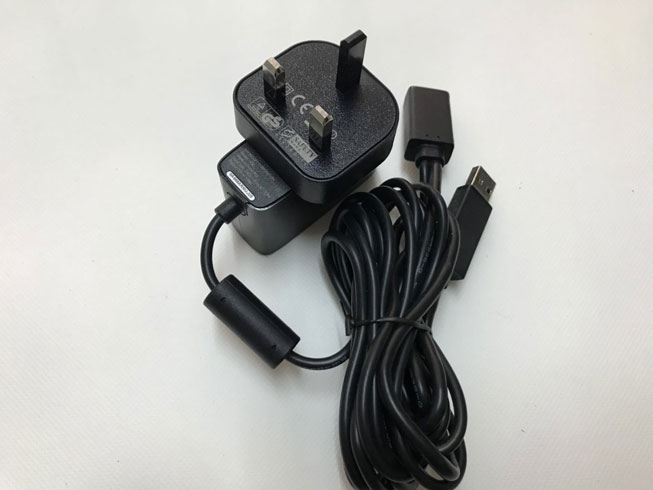
Product Details
Device Type: Power adapter – external
Power Capacity: 12V 1.08A
Manufacturer Warranty: 1 year warranty
Fit Models: Notebook Adapter for Microsoft Xbox 360
Adapter Part Numbers:
1429 1448 1430 1432
DE:Microsoft 1448 NOTEBOOK-Netzteil. Das richtige MICROSOFT Laptop adapter finden.
NL:Microsoft 1448 power adapter
https://www.uk-online.co.uk/adapter-for-microsoft-xbox-360-for-sale-179479.html
Can the notebook power adapter be universal?
Notebook power adapters are not universal. The reasons for not being universal are as follows: First, most notebook power adapter brands have different interfaces, which means that other brands of power adapters cannot be plugged into a laptop at all. The difference in interface is relatively safe, because at least you will not plug in a power adapter that does not match the current or voltage to power the laptop, causing damage to the computer hardware. Secondly, the voltage of laptop power adapters with different voltages is different. For example, IBM is generally 16V, Dell is 20V, Hp is 18.5V, Sony is 19.5V and so on. It can be seen that even if the power adapter interface is the same, it cannot be powered by a different brand of notebook power adapter. Third, the current is different from different brands of notebook power adapters, such as: IBM is generally 4.5A, Dell is 3.34A, Hp is 2.7A, Sony is 4.1A. In fact, the voltage and current are different for the same brand notebook power adapter. Therefore, even if you use a power adapter between laptops of the same brand, you must confirm the voltage and current specifications.
We will provide you with a one-stop service for AC adapters. We do our utmost to provide laptop notebook AC adapters and power supply units. If your laptop charger is missing or misplaced, please don’t look for alternatives. In our store we have a large number of laptop AC / DC adapters. You can be sure to find the AC adapter kit you need with low cost, fast response and support. All laptop chargers you find in our store are brand new and are guaranteed to meet or exceed the original AC adapter specifications. We ship to laptop adapters around the US, Canada, UK, New Zealand and Ireland, Australia. See more notebook adapters If you have any questions about the power adapter, please contact us.Welcome to www.uk-online.co.uk for more information.
We ship to the Laptop adapter around Globe USA, Canada, UK, NZ and Ireland, Australia. View more laptop adapter. Contact with us if any problem on selecting power adapter.
These may be you want to look for :
Microsoft 48W Power Adapter replacement for Microsoft Surface Pro 1 Pro 2 Charger 1601 1536 1514 Notebook Adapter
Samsung LTM1555 Power Adapter replacement for SAMSUNG SAD04914F-UV LTN1565 BN44-00129C Monitor Notebook Adapter
LG EAY63128601 Power Adapter replacement for LG Gram 15ZD960-GX7TK Notebook Adapter
Microsoft 24W Power Adapter replacement for Microsoft Surface Pro 4 Power 1735 Notebook Adapter
Dell 290W PSU replacement for DELL OPTIPLEX 7020 MT POWER SUPPLY Power Supply
POPULAR PRODUCTS:
Acer A13-045N2A Power Adapters-Input Voltage: 100-240V ~ 1.2A 50-60Hz , DC Output: 19V – 2.37A 45W
Acer PA-1450-26 Power Adapters-Input Voltage: 100-240V ~ 1.2A 50-60Hz , DC Output: 19V – 2.37A 45W
ACER PA-1650-80 Power Adapters-Input Voltage: 100-240V 50-60Hz , DC Output: 19V 3.42A,65W
Chicony A11-200P1A Power Adapters-Input Voltage: 100-240V 50-60Hz (for worldwi , DC Output: 19V-10.5A 200W
Gigabyte A15-200P1A Power Adapters-Input Voltage: 100-240V 50-60Hz (for worldwi , DC Output: 19V-10.5A 200W
HP HSTNN-LA09 Power Adapters-Input Voltage: 100V ~ 240V, 50~ 60Hz , DC Output: 19V – 7.9A , 150 Watt
Sony ACDP-085E03 Power Adapters-Input Voltage: 100-240V 50-60Hz (for worldwi , DC Output: 19.5V 4.36A 4.35A 4.4A, 85W
Sony VGP-AC10V10 Power Adapters-Input Voltage: 100-240V 50-60Hz (for worldwid , DC Output: 10.5V 3.8A
SONY VGP-AC19V56 Power Adapters-Input Voltage: 100-240V 50/60Hz , DC Output: 19.5V 9.2A 180W
Sony ACDP-100D01 Power Adapters-Input Voltage: 100 – 240V 2.0A 50~ 60Hz , DC Output: 19.5V ~ 5.2A , 100Watt
Buy Microsoft 1432 Laptop Power Adapters & Chargers for Microsoft Xbox 360 Model 1429 KINECT AC USB Plug
This Power Charger will work like a charm with your Microsoft 1432 laptop. A free power cord is also attached for your convenience. We do proudly declare that this Microsoft 1432 AC adapter is high quality. Besides, our Microsoft 1432 AC adapter is brand new and backed by a 30-day money guarantee. Please purchase with full confidence. So if your original adapter is lost or broken, this would be your choice. 1 Year Warranty & Fast Shipping.
New Replacement MICROSOFT 1432 Adapter
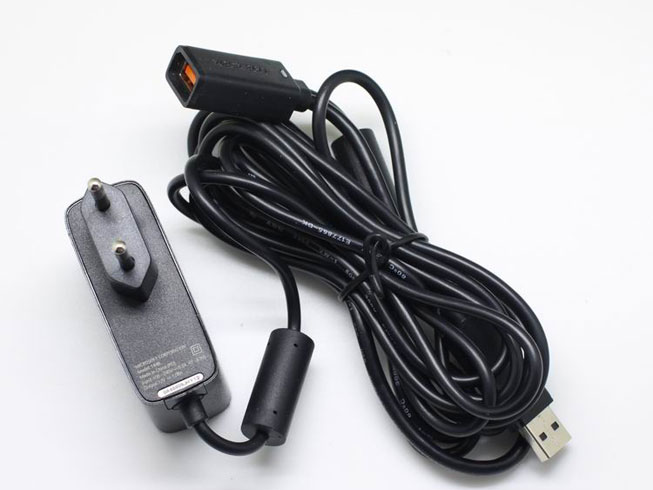
Product Details
Device Type: Power adapter – external
Power Capacity: 12V 1.08A
Manufacturer Warranty: 1 year warranty
Fit Models: Notebook Adapter for Microsoft Xbox 360 Model 1429 KINECT AC USB Plug
Adapter Part Numbers:
1429 1448 1430 1432
DE:Microsoft 1432 NOTEBOOK-Netzteil. Das richtige MICROSOFT Laptop adapter finden.
NL:Microsoft 1432 power adapter
Can the notebook power adapter be universal?
Notebook power adapters are not universal. The reasons for not being universal are as follows: First, most notebook power adapter brands have different interfaces, which means that other brands of power adapters cannot be plugged into a laptop at all. The difference in interface is relatively safe, because at least you will not plug in a power adapter that does not match the current or voltage to power the laptop, causing damage to the computer hardware. Secondly, the voltage of laptop power adapters with different voltages is different. For example, IBM is generally 16V, Dell is 20V, Hp is 18.5V, Sony is 19.5V and so on. It can be seen that even if the power adapter interface is the same, it cannot be powered by a different brand of notebook power adapter. Third, the current is different from different brands of notebook power adapters, such as: IBM is generally 4.5A, Dell is 3.34A, Hp is 2.7A, Sony is 4.1A. In fact, the voltage and current are different for the same brand notebook power adapter. Therefore, even if you use a power adapter between laptops of the same brand, you must confirm the voltage and current specifications.
We will provide you with a one-stop service for AC adapters. We do our utmost to provide laptop notebook AC adapters and power supply units. If your laptop charger is missing or misplaced, please don’t look for alternatives. In our store we have a large number of laptop AC / DC adapters. You can be sure to find the AC adapter kit you need with low cost, fast response and support. All laptop chargers you find in our store are brand new and are guaranteed to meet or exceed the original AC adapter specifications. We ship to laptop adapters around the US, Canada, UK, New Zealand and Ireland, Australia. See more notebook adapters If you have any questions about the power adapter, please contact us.Welcome to www.uk-online.co.uk for more information.
We ship to the Laptop adapter around Globe USA, Canada, UK, NZ and Ireland, Australia. View more laptop adapter. Contact with us if any problem on selecting power adapter.
These may be you want to look for :
Sony PSV1000 Power Adapter replacement for Charge Cable for PS Vita PSV1000 Notebook Adapter
Dell CDF57 Power Adapter replacement for DELL XPS 11 12 13 Inspiron 14 7437 7348 7000 Notebook Adapter
Acer KP.18001.002 Power Adapter replacement for Acer Predator 15 G9-591-74KN Charger Notebook Adapter
Dell H525EF-00 PSU replacement for Dell Precision T3500 Power Supply
Clevo 230W Power Adapter replacement for Clevo P170SM-A P177SM-A X811 X711 Gaming Notebook Adapter
POPULAR PRODUCTS:
Acer A13-045N2A Power Adapters-Input Voltage: 100-240V ~ 1.2A 50-60Hz , DC Output: 19V – 2.37A 45W
Acer PA-1450-26 Power Adapters-Input Voltage: 100-240V ~ 1.2A 50-60Hz , DC Output: 19V – 2.37A 45W
ACER PA-1650-80 Power Adapters-Input Voltage: 100-240V 50-60Hz , DC Output: 19V 3.42A,65W
Chicony A11-200P1A Power Adapters-Input Voltage: 100-240V 50-60Hz (for worldwi , DC Output: 19V-10.5A 200W
Gigabyte A15-200P1A Power Adapters-Input Voltage: 100-240V 50-60Hz (for worldwi , DC Output: 19V-10.5A 200W
HP HSTNN-LA09 Power Adapters-Input Voltage: 100V ~ 240V, 50~ 60Hz , DC Output: 19V – 7.9A , 150 Watt
Sony ACDP-085E03 Power Adapters-Input Voltage: 100-240V 50-60Hz (for worldwi , DC Output: 19.5V 4.36A 4.35A 4.4A, 85W
Sony VGP-AC10V10 Power Adapters-Input Voltage: 100-240V 50-60Hz (for worldwid , DC Output: 10.5V 3.8A
SONY VGP-AC19V56 Power Adapters-Input Voltage: 100-240V 50/60Hz , DC Output: 19.5V 9.2A 180W
Sony ACDP-100D01 Power Adapters-Input Voltage: 100 – 240V 2.0A 50~ 60Hz , DC Output: 19.5V ~ 5.2A , 100Watt
Dell CPB09-007A PSU for Dell Studio One 19 Vostro 320
Dell CPB09-007A PSU for Dell Studio One 19 Vostro 320.
Whether you’re building a basic desktop or a power-house gaming PC, choosing the right PC power supply unit (PSU) is an important decision. Here we have PSUs for Dell CPB09-007A. Fully Modular Cable Management, 80 Plus Gold-Certified to Deliver over 90% Efficiency …
New Replacement DELL CPB09-007A Power supply
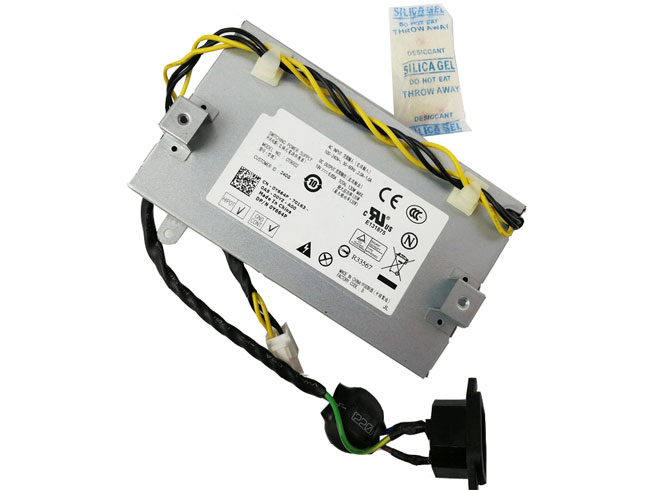
Product Details
Device Type: Power adapter – external
Power Capacity: 19V 6.85A 130W
Manufacturer Warranty: 1 year warranty
Fit Models: PSU for Dell Studio One 19 Vostro 320
Adapter Part Numbers:
Ot9002 CPB09-007A H109R Y664P CPB09-007A HP-D1301E0 L1100E-S0
DE:Dell CPB09-007A NOTEBOOK-Netzteil. Das richtige DELL Laptop adapter finden.
NL:Dell CPB09-007A power adapter
https://www.uk-online.co.uk/power-supply-dell-studio-one-19-vostro-320-for-sale-179491.html
How can I maintain the computer host?
Step 1 Do not switch the machine frequently
Some of them are always shut down and restarted because of small problems. This kind of habit is very bad, which will greatly damage the computer hardware. It is best to enable hibernation if you don’t use it for a short time. Don’t drag the vibrating computer while the computer is still in use, and you can’t plug in the hardware accessories. These practices will greatly damage the computer.
Step 2 should be turned on frequently
If the computer has been idle for a long time, if it is in the summer, if the air is wet, the host is prone to short circuit caused by the tide. It is best to turn it on every day for 10 minutes a day. When it rains and thunder, be sure to turn off the computer and put all the The power plug is pulled out.
Step 3, don’t pay attention to heat dissipation
Long-term operation of the computer heat accumulation, long-term operation of the computer will slow down or crash, summer should pay attention to indoor ventilation, CPU fans to buy a better point. If it is too hot, it is best to open the cover of the case to make it easier to dissipate heat. For the problem of antifreeze, if the computer is too cold in winter, it will cause the problem of opening and not turning on.
Step 4 Pay attention to dust
Dust damage to the computer is also relatively large, usually do not open the computer case cover, when the computer is not in use, the computer host is covered with a cloth to prevent dust from entering the computer and causing malfunction.
Step 5 Try to use a three-hole socket
It is best to use a 3-hole socket to prevent static electricity from collecting on the computer. This reduces the occurrence of static electricity. If you feel an electrostatic shock on the chassis, connect the chassis to a copper wire and ground the other end.
Step 6: Turn on the peripherals and then turn on the host when booting.
The correct boot sequence is to open the peripherals and then turn on the host, such as print connection, audio, display, etc. Turn off the host first when shutting down.
Step 7: The computer cannot be loaded and unloaded during daily use.
When loading and unloading software, you should check to see if it is the software that comes with the original system. Removing the software that comes with the system can sometimes cause major problems with the use of the computer.
Step 8 prohibits magnetic objects from being placed around the display
Such as mobile phones, audio, etc., do not be placed next to the display, so as to avoid magnetic interference.
Step 9 The computer needs to carry out dust removal maintenance for half a year.
It is best to do a dust removal every few months. If you don’t know what to do, you can ask a professional maintenance person how to remove dust from the chassis to avoid damage to hardware or electric shock.
Step 10 The computer cannot be used overnight.
The computer is not used all night, which will cause the computer to accumulate too much heat, and all kinds of hardware will wear out. The long-term use will reduce the life of the computer, and the computer will also have radiation. It is not good for the body.
Uk-online.co.uk gives you the right host power selection method First, make sure to choose a PSU from a reputable manufacturer.
Output
The output is very important when selecting a PSU. This output is listed in watts and should be greater than the total wattage of all components in the system plus 40% to 60%. Quite simply, the more you have to the system, the higher the power of the PC power unit. For example, high-end gamers need far more power than home users who surf the Internet and do word processing.
energy efficiency
But not just wattage. Efficiency is very important, so look for PSUs with 80 Plus certification. This shows that the PSU will waste less energy than other units, making it cheaper and more reliable.
PSU wiring
There are different types of PSUs and wiring. The fully modular power unit allows the user to remove excess cables from the chassis, while the semi-modular PSU has a mix of detachable and hard-wired or permanent cables.
The third option is a fully wired PSU, which, as the name suggests, does not allow any cables to be disconnected. Of these three, fully modular units are the most versatile.
If you are replacing the mains power for your computer, please visit uk-online.co.uk, we are a professional battery and power adapter store. Here, you can purchase power from all well-known brands and enjoy the highest discounted prices.
We ship to the Laptop adapter around Globe USA, Canada, UK, NZ and Ireland, Australia. View more laptop adapter. Contact with us if any problem on selecting power adapter.
These may be you want to look for :
Acer PA-1131-16 Power Adapter replacement for Acer Aspire V17 Nitro VN7-792G-797V T5000-73CF Notebook Adapter
ASUS DSL-N55U Power Adapter replacement for ASUS RT-N56U Router RT-AC66U Notebook Adapter
ASUS S200L Power Adapter replacement for Asus Zenbook UX32A UX31A UX21A Notebook Adapter
LG LCAP21B Power Adapter replacement for LG EAY62549304 LCAP21A 23EA63V 24EA53T Monitor Notebook Adapter
LG ADS-40FSG-19 Power Adapter replacement for LG E1948S E2242C E2249 E1948 PC Notebook Adapter
POPULAR PRODUCTS:
Acer A13-045N2A Power Adapters-Input Voltage: 100-240V ~ 1.2A 50-60Hz , DC Output: 19V – 2.37A 45W
Acer PA-1450-26 Power Adapters-Input Voltage: 100-240V ~ 1.2A 50-60Hz , DC Output: 19V – 2.37A 45W
ACER PA-1650-80 Power Adapters-Input Voltage: 100-240V 50-60Hz , DC Output: 19V 3.42A,65W
Chicony A11-200P1A Power Adapters-Input Voltage: 100-240V 50-60Hz (for worldwi , DC Output: 19V-10.5A 200W
Gigabyte A15-200P1A Power Adapters-Input Voltage: 100-240V 50-60Hz (for worldwi , DC Output: 19V-10.5A 200W
HP HSTNN-LA09 Power Adapters-Input Voltage: 100V ~ 240V, 50~ 60Hz , DC Output: 19V – 7.9A , 150 Watt
Sony ACDP-085E03 Power Adapters-Input Voltage: 100-240V 50-60Hz (for worldwi , DC Output: 19.5V 4.36A 4.35A 4.4A, 85W
Sony VGP-AC10V10 Power Adapters-Input Voltage: 100-240V 50-60Hz (for worldwid , DC Output: 10.5V 3.8A
SONY VGP-AC19V56 Power Adapters-Input Voltage: 100-240V 50/60Hz , DC Output: 19.5V 9.2A 180W
Sony ACDP-100D01 Power Adapters-Input Voltage: 100 – 240V 2.0A 50~ 60Hz , DC Output: 19.5V ~ 5.2A , 100Watt
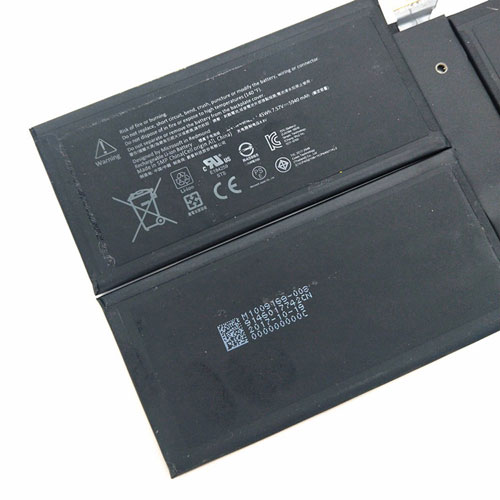
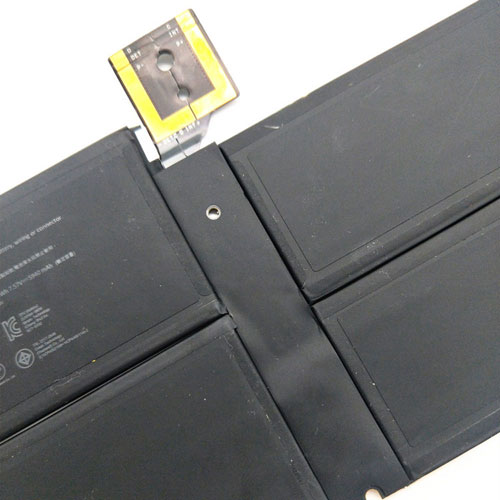
Microsoft DYNM02 laptop battery
- Microsoft DYNM02 laptop battery is made from the highest quality cells and parts. TheMicrosoft DYNM02 is designed to meet or exceed original equipment specifications. Shopping with us is safe and secure! 100% Guarantee Quality and Fully Test!
DYNM02 laptop battery pack for Microsoft Surface Pro5 1796.
Microsoft DYNM02 5940mAh/45Wh 7.57V laptop battery is made from the highest quality cells and parts. The Microsoft DYNM02 is designed to meet or exceed original equipment specifications. Shopping with us is safe and secure! 100% Guarantee Quality and Fully Test!Microsoft DYNM02 laptop battery High Quality Battery 5940mAh/45Wh 7.57V
Product details:
Brand:Microsoft laptop battery
Type: Li-ion-battery
Voltage: 5940mAh/45Wh
Capacity: 7.57V
Usually ships the same business day!

New Microsoft DYNM02 notebook battery High Quality Battery 5940mAh/45Wh, 7.57V
Replacement Battery>> Microsoft DYNM02 5940mAh/45Wh 7.57V
Replace the following part numbers:
- Microsoft DYNM02
- Fits the Following Models:
Microsoft Surface Pro5 1796

https://www.uk-online.co.uk/DYNM02-battery-replacement-179517.html
RU:Microsoft DYNM02JP:
Microsoft DYNM02 スマホのバッテリー-Japan First StoreDE:
AKKU Für Microsoft DYNM02, Ersatz für Microsoft Surface Pro5 1796.-GermanyIT:
Microsoft DYNM02 Batteria-ItalyES:
Microsoft DYNM02 Batería-SpainLaptop battery usage time
The battery of a laptop can generally be used for 3-5 hours. Laptop battery maintenance and maintenance: The battery is a consumable part and will be reimbursed after hundreds of uses. Therefore, we must pay attention to maintenance and maintenance when using the notebook battery. Activation must be done when you use a new battery. The so-called activation is to fully charge and discharge the battery. Many people say that activation should be carried out 3 to 5 times. In fact, according to many experiments, it only takes 2 or 3 times, because many batteries can reach 98.6% of the rated capacity after the first full charge. The second time is generally It is possible to fully reach the rated capacity. Others said that the activation of the charge should be charged for 12 hours, in fact, it is not quite correct, because when the control circuit thinks that the battery is fully charged, the battery is terminated by the circuit, and the battery is also connected to the power supply. It doesn’t make sense, but if you like to charge for 12 hours, you will know it. In addition, when your battery performance drops significantly, it can be fully charged and discharged several times, and the performance of the battery will be improved. The correct full charge and discharge method is to first turn off the power saving option in Bios, then select all of the Windows “power usage scheme” as “never”, remove all hooks in the “alarm” option, when the power is left Restart the computer at about 5%, press the Pause button on the screen to display the self-test information, then turn off the screen to discharge the battery under low current until it is automatically turned off and recharged. A full charge is completed. To extend battery life, you should pay attention to energy saving in daily use after battery activation. You can select “Maximum Battery Life” in the Bios power option, and you can turn off some devices you did.
UK-Online.co.uk was established to serve the needs of laptop users, and today we are one of the top e-retailers. Get a great deal on electronics when you shop on www.uk-online.co.uk. Choose an iPad, TV or laptop, headphones, PS4, Xbox One and more. Offers on mobile phones and cameras.
https://www.uk-online.co.uk/DYNM02-battery-replacement-179517.htmlSamsung SP3676B1A tablet battery for Samsung Galaxy Tab 2 10.1 GT-P5100 P5110 -P5113 -P7500
Samsung T4500E tablet battery for Samsung Galaxy Tab 3 10.1 GT-P5200 P5210 GT-P5213 P5220
Razer RC81-0112 laptop battery for Razer RC81-01120100
Samsung SP3770E1H tablet battery for Samsung Galaxy Note 8.0 GT-N5100 N5110 Tablet PC
Xiaomi R13B01W tablet battery for Xiaomi Laptop Mi Air 13.3
Amazon 58-000151 tablet battery for Amazon Kindle 7 7th Gen 6 Model WP63GW 58-000083
Lenovo 00HW030 laptop battery for Lenovo ThinkPad P70 Series
HP SR04XL laptop battery for HP Omen 15-ce000 15-ce000ng
DELL N1WM4 laptop battery for DELL Alienware 13 R2 13.3 Inch Series
ACER AP16M5J laptop battery for ACER A315-51-51SL N17Q1 SERIES
Other Hot Sales:
Asus C11P1502 laptop battery4750mAh – 3.8V
Lenovo L13D1P32 laptop battery4290MAH/16.3WH – 3.8V
Asus C12N1320 laptop battery7900mAh/31Wh – 3.8V
Lenovo L12T1P3 laptop battery3700mAh/3.7wh – 3.7V
Lenovo L14D2P31 laptop battery7000mAh/26.60wh – 3.8V
Apple A1484 laptop battery8827mAh – 3.73V
Bose 404600 laptop battery2300mah – 11.1V/12.4v
Bose 063404 laptop battery2230mAH/17Wh – 7.4V
Bose 300769-003 laptop battery400mA/2200mAH/32Wh – 16.8V/20V
Bose PSM36W-208 laptop battery100-240V 50-60Hz (for worldwi – 18V,1A,18w
HP OL02XL laptop battery4450 mAh – 7.4 V
Bose 061384 laptop battery2230mAH/17Wh – 7.4V
ASUS C11P1517 laptop battery4545mAh/18Wh – 3.85V
Bose 088796 laptop battery2230mAH/17Wh – 7.4V
Asus C11P1505 laptop battery3948mAh – 3.8V
Amazon 58-000151 laptop battery890mAh – 3.7V/4.2V
Huawei HB436486ECW laptop battery3900mAh/14.9wh – 3.82V
Medion A41-E15 laptop battery2600MAH/37WH – 14.52V
BLU C836404292L laptop battery2090MAH/11.096WH – 3.8V
VERTU VBL-02 laptop battery3080MAH/11.7WH – 3.8V
Haswell TU131-TS63-74 laptop battery6000mAh/45wh – 7.4V
Samsung 4302-001262 laptop battery2200mAh/24Wh – 11.1V
Gigabyte GNG-E20 laptop battery5300mAh/39.22Wh – 7.4V
Gigabyte NC-H40 laptop battery4300mAh/63.64Wh – 14.8V
Sony LIS1569ERPC laptop battery4500mAh/17.1wh – 3.8V
NEC PC-VP-BP67 laptop battery2900mAh/39WH – 14.4V
Bose 78592 laptop battery5500MAH – 14.8V
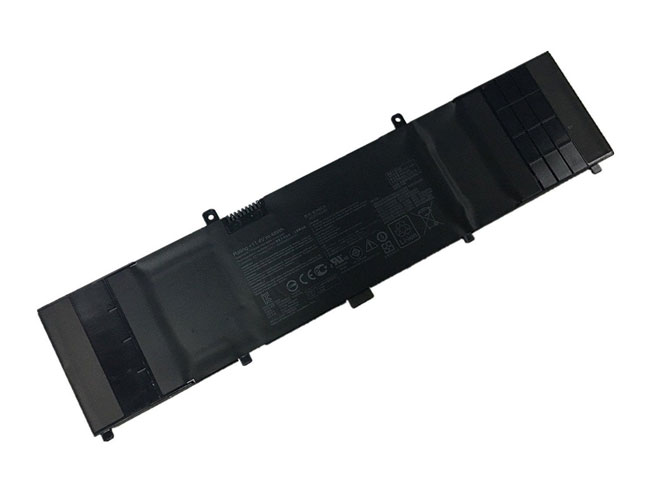
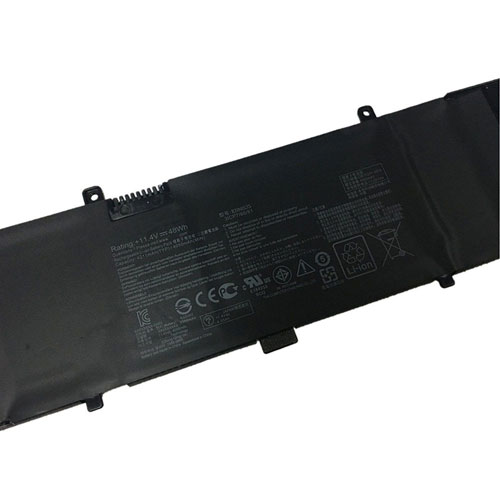
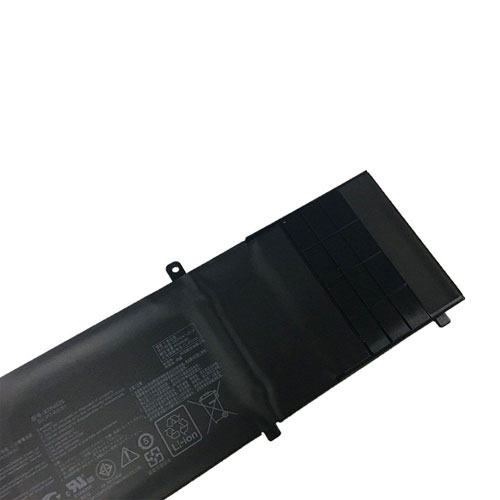
Cheap ASUS B31N1535 Battery Replace for ASUS ZenBook UX310 UX310UA UX310UQ UX410UA
- ASUS B31N1535 laptop battery is made from the highest quality cells and parts. TheASUS B31N1535 is designed to meet or exceed original equipment specifications. Shopping with us is safe and secure! 100% Guarantee Quality and Fully Test!
B31N1535 laptop battery pack for ASUS ZenBook UX310 UX310UA UX310UQ UX410UA.
ASUS B31N1535 48Wh 11.4V laptop battery is made from the highest quality cells and parts. The ASUS B31N1535 is designed to meet or exceed original equipment specifications. Shopping with us is safe and secure! 100% Guarantee Quality and Fully Test!ASUS B31N1535 laptop battery High Quality Battery 48Wh 11.4V
Product details:
Brand:ASUS laptop battery
Type: Li-ion-battery
Voltage: 48Wh
Capacity: 11.4V
Usually ships the same business day!
New ASUS B31N1535 notebook battery High Quality Battery 48Wh, 11.4V
Replacement Battery>> ASUS B31N1535 48Wh 11.4V
Replace the following part numbers:
- ASUS B31N1535
- ASUS 0B200-02020000
- ASUS 3ICP7/60/80
- Fits the Following Models:
Asus ZenBook UX310 Series
Asus ZenBook UX410UA UX410UQ Series
https://www.uk-online.co.uk/B31N1535-battery-replacement-179470.html
RU:ASUS B31N1535JP:
ASUS B31N1535 スマホのバッテリー-Japan First StoreDE:
AKKU Für ASUS B31N1535, Ersatz für ASUS ZenBook UX310 UX310UA UX310UQ UX410UA.-GermanyIT:
ASUS B31N1535 Batteria-ItalyES:
ASUS B31N1535 Batería-SpainLaptop battery usage time
The battery of a laptop can generally be used for 3-5 hours. Laptop battery maintenance and maintenance: The battery is a consumable part and will be reimbursed after hundreds of uses. Therefore, we must pay attention to maintenance and maintenance when using the notebook battery. Activation must be done when you use a new battery. The so-called activation is to fully charge and discharge the battery. Many people say that activation should be carried out 3 to 5 times. In fact, according to many experiments, it only takes 2 or 3 times, because many batteries can reach 98.6% of the rated capacity after the first full charge. The second time is generally It is possible to fully reach the rated capacity. Others said that the activation of the charge should be charged for 12 hours, in fact, it is not quite correct, because when the control circuit thinks that the battery is fully charged, the battery is terminated by the circuit, and the battery is also connected to the power supply. It doesn’t make sense, but if you like to charge for 12 hours, you will know it. In addition, when your battery performance drops significantly, it can be fully charged and discharged several times, and the performance of the battery will be improved. The correct full charge and discharge method is to first turn off the power saving option in Bios, then select all of the Windows “power usage scheme” as “never”, remove all hooks in the “alarm” option, when the power is left Restart the computer at about 5%, press the Pause button on the screen to display the self-test information, then turn off the screen to discharge the battery under low current until it is automatically turned off and recharged. A full charge is completed. To extend battery life, you should pay attention to energy saving in daily use after battery activation. You can select “Maximum Battery Life” in the Bios power option, and you can turn off some devices you did.
UK-Online.co.uk was established to serve the needs of laptop users, and today we are one of the top e-retailers. Get a great deal on electronics when you shop on www.uk-online.co.uk. Choose an iPad, TV or laptop, headphones, PS4, Xbox One and more. Offers on mobile phones and cameras.
https://www.uk-online.co.uk/B31N1535-battery-replacement-179470.htmlBosch BAT609 replacement battery for Bosch HDS180-03
FaxMax FMC686L replacement battery for Stanley FatMax
Fujifilm NP-50 replacement battery for Fujifilm NP-50A F665 F750 F75 F100 F900 XF1 X10 X20 F85
Canon LP-E8 replacement battery for Canon EOS 550D 600D 700D Kiss X4, Rebel T3i,T2i
ASUS C31N1431 laptop battery for ASUS EeeBook E403SA E403SA-WX0002H E403SA-WX0003H
ASUS C22N1307 laptop battery for ASUS Transformer Book T300LA T300LA-BB31T Series
LG BL-44E1F replacement battery for LG V20 H910 H918 VS995 LS997 US996 H990N F800
LG BL-45A1H replacement battery for LG K10 BL-45A1H K425 K428 MS428 F670
HP DB06XL laptop battery for HP Probook 11 EE G1 G2
Apple A1527 laptop battery for Apple MacBook Retina 12 661-02267 A1534 Early 2015
Other Hot Sales:
Asus C11P1502 laptop battery4750mAh – 3.8V
Lenovo L13D1P32 laptop battery4290MAH/16.3WH – 3.8V
Asus C12N1320 laptop battery7900mAh/31Wh – 3.8V
Lenovo L12T1P3 laptop battery3700mAh/3.7wh – 3.7V
Lenovo L14D2P31 laptop battery7000mAh/26.60wh – 3.8V
Apple A1484 laptop battery8827mAh – 3.73V
Bose 404600 laptop battery2300mah – 11.1V/12.4v
Bose 063404 laptop battery2230mAH/17Wh – 7.4V
Bose 300769-003 laptop battery400mA/2200mAH/32Wh – 16.8V/20V
Bose PSM36W-208 laptop battery100-240V 50-60Hz (for worldwi – 18V,1A,18w
HP OL02XL laptop battery4450 mAh – 7.4 V
Bose 061384 laptop battery2230mAH/17Wh – 7.4V
ASUS C11P1517 laptop battery4545mAh/18Wh – 3.85V
Bose 088796 laptop battery2230mAH/17Wh – 7.4V
Asus C11P1505 laptop battery3948mAh – 3.8V
Amazon 58-000151 laptop battery890mAh – 3.7V/4.2V
Huawei HB436486ECW laptop battery3900mAh/14.9wh – 3.82V
Medion A41-E15 laptop battery2600MAH/37WH – 14.52V
BLU C836404292L laptop battery2090MAH/11.096WH – 3.8V
VERTU VBL-02 laptop battery3080MAH/11.7WH – 3.8V
Haswell TU131-TS63-74 laptop battery6000mAh/45wh – 7.4V
Samsung 4302-001262 laptop battery2200mAh/24Wh – 11.1V
Gigabyte GNG-E20 laptop battery5300mAh/39.22Wh – 7.4V
Gigabyte NC-H40 laptop battery4300mAh/63.64Wh – 14.8V
Sony LIS1569ERPC laptop battery4500mAh/17.1wh – 3.8V
NEC PC-VP-BP67 laptop battery2900mAh/39WH – 14.4V
Bose 78592 laptop battery5500MAH – 14.8V